

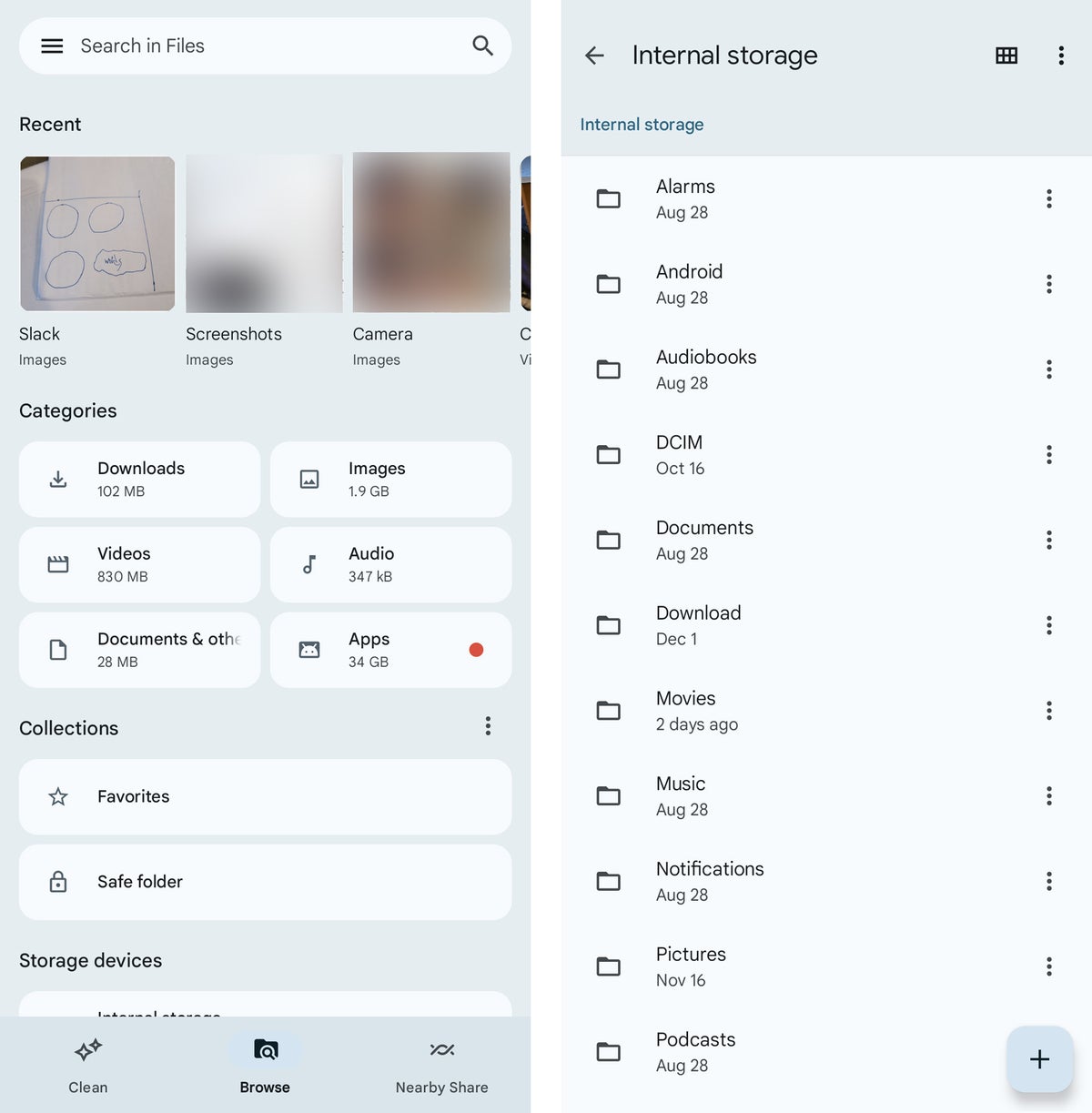
Android devices have become an integral part of our lives, storing a vast array of personal and professional data. Effective file management is crucial to keep your device organized, efficient, and secure. Let’s dive into the world of Android file management and explore some essential tips and tricks to help you master this skill.
Understanding Android’s File System
Before we delve into the tips and tricks, it’s important to have a basic understanding of Android’s file system. Unlike traditional computers, Android devices have a more streamlined approach to file management. The primary storage location for most files is the internal storage, which is directly integrated into the device. Additionally, you can expand your storage capacity using external SD cards.
Essential Tips and Tricks
1. Utilize a Reliable File Manager App:
A good file manager app is your key to efficient file management on Android. These apps provide a user-friendly interface to navigate your device’s storage, copy, move, delete, and organize files. Some popular options include:
– Files by Google: A simple and intuitive file manager app that comes pre-installed on many Android devices.
– Solid Explorer: A feature-rich file manager with a customizable interface and support for cloud storage services.
– FX File Explorer: A powerful file manager with advanced features like root access and FTP/SFTP support.
2. Organize Your Files Effectively:
A well-organized file system is essential for easy access and efficient retrieval of your files. Here are some tips to keep your files organized:
– Create Folders: Create folders for different categories of files, such as documents, photos, music, and videos.
– Use Subfolders: Further organize your folders by creating subfolders for specific topics or projects.
– Rename Files: Use descriptive file names to easily identify their content.
– Delete Unnecessary Files: Regularly delete files that you no longer need to free up storage space.
3. Backup Your Important Files:
Data loss can be devastating, so it’s crucial to back up your important files regularly. Here are some effective backup methods:
– Cloud Storage: Utilize cloud storage services like Google Drive, Dropbox, or OneDrive to store your files online.
– External Hard Drive: Connect an external hard drive to your device and transfer your files to it.
– SD Card: Use an SD card to store your files, especially photos and videos.
– Regularly Sync Your Files: Ensure your files are synced across different devices to prevent data loss.
4. Transfer Files Seamlessly:
Transferring files between your Android device and other devices can be a hassle. Here are some convenient methods:
– Bluetooth: Use Bluetooth to transfer files between devices that support this technology.
– USB Cable: Connect your device to a computer using a USB cable to transfer files.
– Wi-Fi Direct: Transfer files directly between devices without an internet connection.
– Cloud Storage: Upload files to cloud storage and access them from any device with an internet connection.
– File Transfer Apps: Use apps like SHAREit or Xender to transfer files quickly and easily.
5. Secure Your Files with Encryption:
Protecting your sensitive data is crucial, especially if your device falls into the wrong hands. Consider using encryption to safeguard your files:
– Device Encryption: Enable device encryption to protect all the data on your device.
– File Encryption Apps: Use apps like AES Crypt to encrypt specific files or folders.
6. Optimize Storage Space:
As you accumulate more files, your device’s storage space may start to fill up. Here are some tips to optimize storage space:
– Delete Unnecessary Apps: Remove apps that you no longer use.
– Clear App Cache and Data: Regularly clear app cache and data to free up space.
– Move Files to an SD Card: Move large files like videos and music to an SD card.
– Use a Cloud Storage Service: Store files in the cloud to save space on your device.
7. Stay Updated with the Latest Android Version:
Keep your Android device updated with the latest version of the operating system. Newer versions often include improvements in file management features and security.
By following these tips and tricks, you can master Android file management and keep your device organized, efficient, and secure. Remember, effective file management is an ongoing process, so make it a habit to regularly organize and back up your files.
Ein Überblick über die Android-Dateisystem-Navigation
Android, obwohl ein leistungsstarkes Betriebssystem, kann manchmal etwas geheimnisvoll sein, wenn es um die Verwaltung von Dateien und Ordnern geht. Aber keine Sorge, wir werden das gemeinsam entschlüsseln!
Die Standard-Dateimanager-App
Die meisten Android-Geräte kommen mit einer vorinstallierten Dateimanager-App. Diese App ermöglicht es Ihnen, Ihre Dateien und Ordner zu durchsuchen, zu kopieren, einzufügen, zu verschieben, zu löschen und vieles mehr.
Navigieren durch das Dateisystem: Tippen Sie einfach auf die verschiedenen Ordner, um tiefer in die Verzeichnisstruktur einzudringen.
Dateien über einen Computer verwalten
Wenn Sie es vorziehen, Ihre Dateien über einen Computer zu verwalten, können Sie Ihr Android-Gerät mit Ihrem Computer verbinden.
1. USB-Verbindung: Verbinden Sie Ihr Gerät über ein USB-Kabel mit Ihrem Computer.
2. Dateiübertragungsprotokoll (FTP): Einige Geräte unterstützen FTP, sodass Sie eine FTP-Client-Software verwenden können, um auf Ihre Dateien zuzugreifen.
3. Cloud-Speicher: Nutzen Sie Cloud-Speicherdienste wie Google Drive, Dropbox oder OneDrive, um Ihre Dateien zwischen Geräten zu synchronisieren.
Tipps zur effektiven Dateiverwaltung
Organisieren Sie Ihre Dateien: Erstellen Sie Ordner für verschiedene Dateitypen, wie z.B. Bilder, Musik, Dokumente und Downloads.
Häufige Fragen zur Dateiverwaltung auf Android
Frage: Wie kann ich Dateien von meinem Computer auf mein Android-Gerät übertragen?
Antwort: Verbinden Sie Ihr Gerät über ein USB-Kabel mit Ihrem Computer und kopieren Sie die Dateien in den gewünschten Ordner.
Frage: Wie kann ich den Standard-Dateimanager ändern?
Antwort: Dies hängt von Ihrem Gerät und der Android-Version ab. Sie können versuchen, eine andere Dateimanager-App als Standard festzulegen, aber dies ist möglicherweise nicht immer möglich.
Frage: Wie kann ich Dateien auf meiner SD-Karte verwalten?
Antwort: Verwenden Sie Ihre Standard-Dateimanager-App oder eine Drittanbieter-App, um auf Ihre SD-Karte zuzugreifen und Ihre Dateien zu verwalten.
Fazit:
Mit diesen Tipps und Tricks können Sie Ihre Dateien auf Ihrem Android-Gerät effektiv verwalten. Denken Sie daran, Ihre Dateien zu organisieren, unnötige Dateien zu löschen und Ihre Daten regelmäßig zu sichern.


