

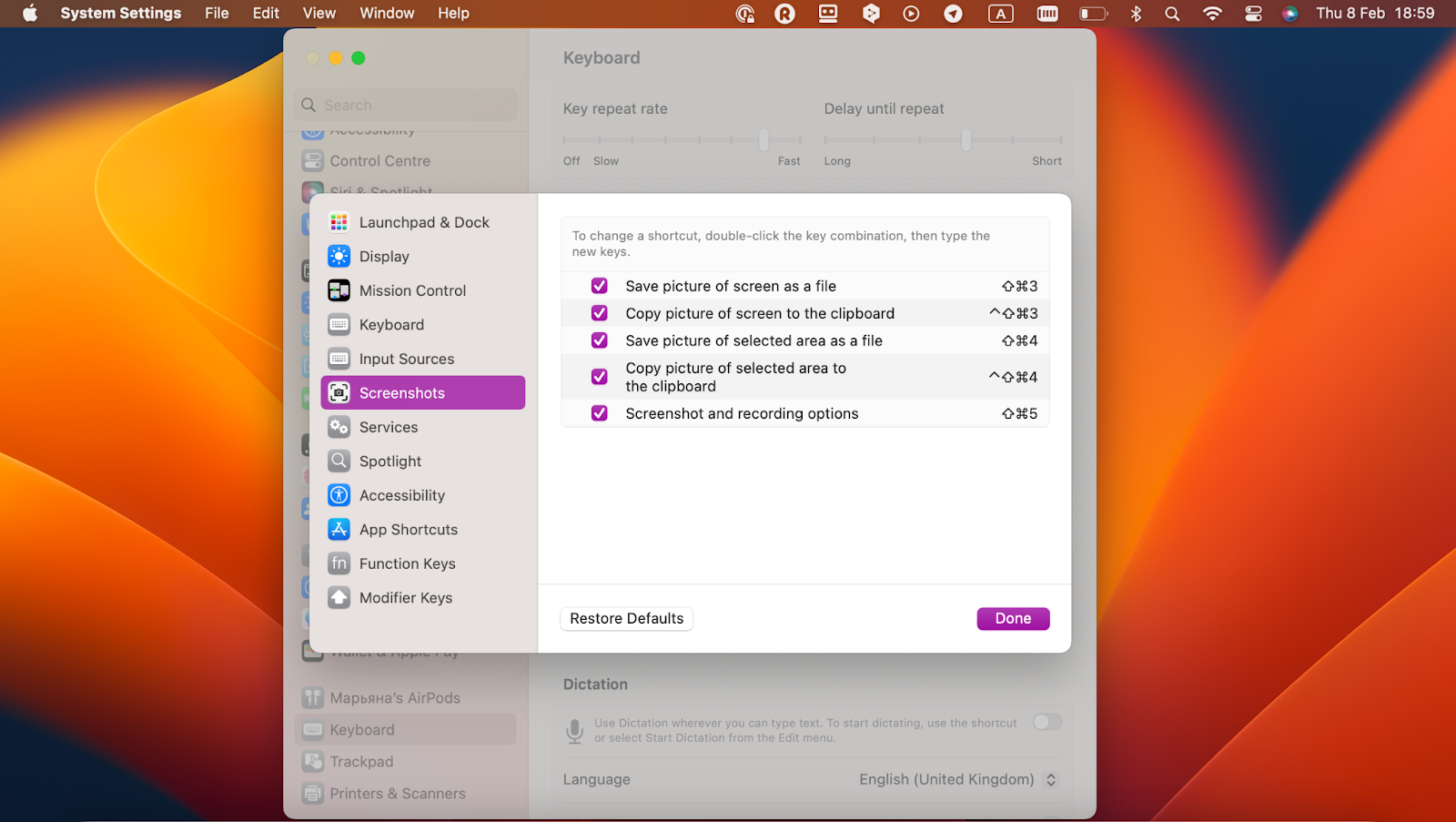
System Preferences is the control center of your MacBook, where you can tweak settings to your heart’s content. It’s a treasure trove of customization options, and keyboard shortcuts are no exception. Here’s how to dive in:
Step 1: Accessing System Preferences
You can access System Preferences in a few ways:
Click the Apple logo: In the top-left corner of your screen, click the Apple logo and select “System Preferences.”
Step 2: Navigating to Keyboard Preferences
Once you’re in System Preferences, you’ll see a grid of icons. Look for the “Keyboard” icon and click on it. This will open the Keyboard preferences window.
Step 3: Exploring the Keyboard Preferences Pane
The Keyboard preferences pane is where the magic happens. It’s divided into several tabs, each offering different customization options.
Keyboard: This tab allows you to adjust keyboard settings like key repeat rate, delay until repeat, and keystroke sounds.
Step 4: Customizing Keyboard Shortcuts
The Shortcuts tab is divided into two sections:
App Shortcuts: This section allows you to create custom keyboard shortcuts for specific applications. For example, you could assign a shortcut to open a specific document or perform a complex task within an app.
Creating a New Keyboard Shortcut:
1. Select the desired application: In the App Shortcuts section, choose the app for which you want to create a shortcut.
2. Click the “+” button: This will add a new row to the list of shortcuts.
3. Enter the menu title: Type the exact menu title of the command you want to assign a shortcut to. For example, if you want to create a shortcut for “Save” in a word processor, you would type “Save.”
4. Enter the keyboard shortcut: In the “Keyboard Shortcut” field, press the key combination you want to use. For example, you could press Command + S to assign the “Save” command to this shortcut.
5. Click “Add”: This will add the new shortcut to the list.
Modifying an Existing Keyboard Shortcut:
1. Select the shortcut: In the App Shortcuts or Keyboard Shortcuts section, select the shortcut you want to modify.
2. Click the shortcut: This will highlight the current keyboard shortcut.
3. Press the new key combination: Type the new key combination you want to assign to the shortcut.
4. The shortcut will be updated.
Tips for Effective Keyboard Shortcut Customization:
Keep it simple: Avoid complex key combinations that are difficult to remember.
By following these steps and tips, you can create a personalized keyboard shortcut experience that boosts your efficiency and makes your MacBook even more enjoyable to use. Experiment, have fun, and discover the power of keyboard shortcuts!
System Preferences is your secret weapon for customizing your MacBook to your exact liking. It’s a treasure trove of settings, and keyboard shortcuts are just one of the many things you can tweak.
Diving into System Preferences
To start, click on the Apple logo in the top-left corner of your screen and select “System Preferences.” A new window will open, showcasing a variety of options.
Keyboard Shortcuts: A World of Possibilities
1. Keyboard:
2. Customizing Existing Shortcuts:
3. Creating New Shortcuts:
A Few Tips for Keyboard Shortcut Mastery
Keep it Simple: Avoid overly complex key combinations. A simple, easy-to-remember shortcut is more efficient.
Beyond the Basics: Power User Tips
Use Keyboard Shortcuts to Navigate Your Mac:
Customize Your Dock:
Personalize Your Desktop:
By mastering keyboard shortcuts and customizing your System Preferences, you can transform your MacBook into a powerful, personalized tool that seamlessly adapts to your workflow. So, go ahead, dive into the depths of your Mac’s settings, and unlock your true potential!


